RODE AI-Micro Settings Adjustments
CAUTION!: It is important to properly adjust settings for the RODE AI-Micro in order to prevent annoying feedback squeal:
The High-Fidelity Binaural Headset (kit) requires the use of the RODE AI-Micro interface, which will route the headset mics inputs into one's mobile device and the device's output (the pitch-lowered bird songs) back to the Koss Headphones. In order for this to work properly, it will be necessary for you to download the RODE Central application and then adjust the settings. The procedure is as follows:
1. Download the latest version of RODE Central and then open the app.
2. Connect your RODE AI-Micro interface to your mobile device. RODE Central should then automatically detect the audio interface.
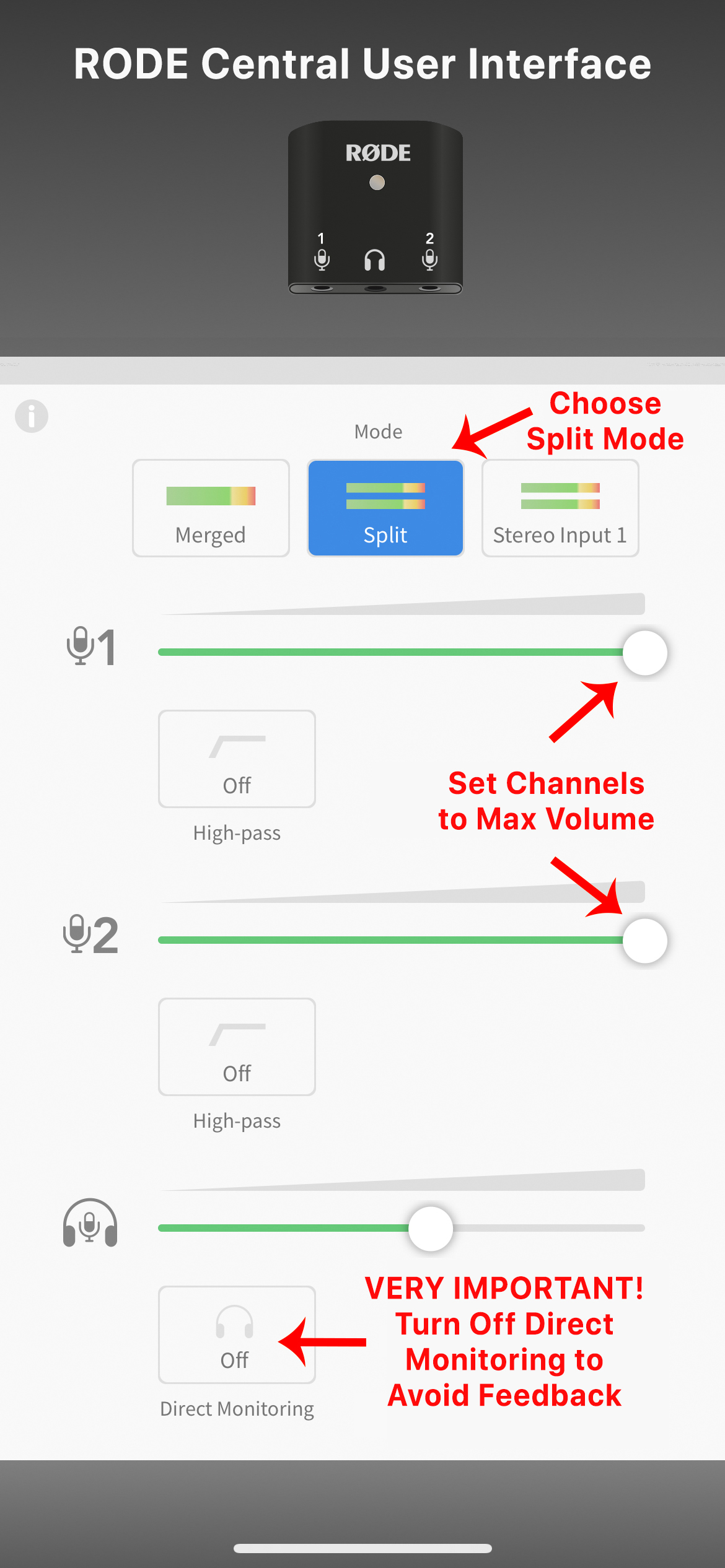
3. Choose the "Split" option for channel routing.
4. Make sure that the "Direct Monitor" option is turned off, the "Input Level" is set to 24db, and the "High Pass Filter" is not engaged. See below for screenshots of RODE Central, including the latest version of the app and the previous version.
Once the direct monitoring setting has been disabled, everything should work fine and you should not have to use the RODE Central app again, except perhaps to occasionally check for updates to the RODE AI-Micro firmware (RODE Central automatically detects if your current firmware is out of date).
Latest Version of Rode Central:

Previouis Version of Rode Central: